It is Monday morning. Your office server will not start. Your client files, invoices, and payroll records are all on it. Then you wonder about your last backup. Was it last night, last month, or never?
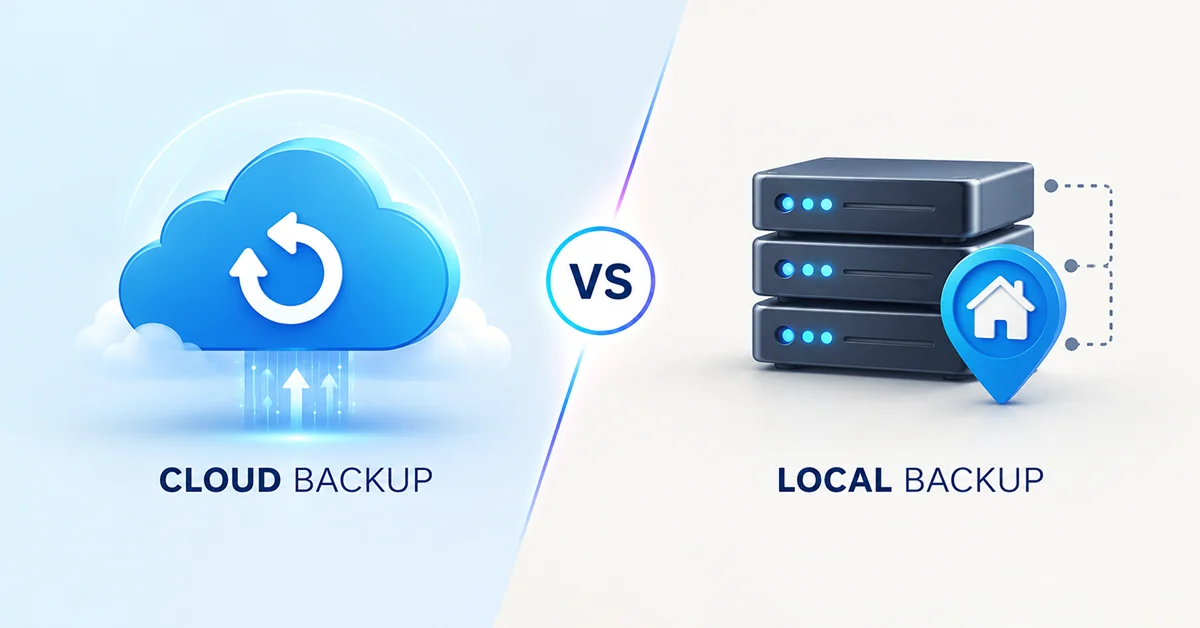
This is the moment when backup choices matter. The best small business backup solutions depend on one big question: should you store copies in the cloud, on local devices, or both? For most Santa Fe businesses, the answer is both.
In this guide, we compare cloud backup vs local backup in plain terms. You will see the pros and cons of each, a side-by-side comparison, and a simple setup that fits most small offices. At Zia Networks, we help businesses across Santa Fe and New Mexico protect their data every day.
What Are the Best Small Business Backup Solutions?
The best small business backup solutions combine local backup for fast recovery with cloud backup for disaster protection. One copy on site gets you running quickly. One copy off site keeps your data safe if the office is lost.
No single option wins on every point. Local backup is fast and simple. Cloud backup is safer from site-wide disasters. Together, they cover each other’s weak spots.
Let us look at each type first.
What Is Local Backup?
Local backup stores copies of your data on devices at your office. Common examples include external hard drives, network-attached storage (NAS) boxes, and a dedicated backup server. Your own network connects them to your computers.
Pros of local backup
- Fast restores. Large files come back at network speed, not internet speed.
- Full control. You decide where the data lives and who can reach it.
- No monthly storage fees. You pay for the hardware up front, although you must replace it over time.
- Works without internet. An outage does not block your recovery.
Cons of local backup
- Same location as your computers. Fire, flood, theft, or a power surge can destroy both.
- Ransomware risk. Malware can spread to backup drives that stay connected to your network.
- Hardware fails. Drives wear out, and someone must watch for errors.
- Manual work. Without monitoring, backups can fail quietly for weeks.
What Is Cloud Backup?
Cloud backup sends encrypted copies of your data over the internet to secure data centers. A small program on your computers or servers runs on a schedule. It uploads only what has changed, so daily backups stay light.
Pros of cloud backup
- Off-site protection. Your data survives a disaster at your office.
- Automatic. Backups run on a schedule, so nobody has to remember.
- Easy to scale. You add storage as you grow.
- Access from anywhere. You can restore files from any location.
Cons of cloud backup
- Slower full restores. Recovering several terabytes over the internet can take days.
- Ongoing cost. You pay a monthly or yearly fee that grows with your data.
- Internet dependence. Internet speeds vary across northern New Mexico, which affects both upload and restore times.
- Setup matters. A poorly configured backup may skip important folders or apps.
Cloud Backup vs Local Backup: Side by Side
Here is how the two compare on the points that matter most:
- Restore speed: Local wins. Cloud is slower for large restores.
- Disaster protection: Cloud wins. Local backup shares the office’s risks.
- Upfront cost: Cloud is lower. Local needs hardware.
- Long-term cost: It depends on your data size. Cloud fees add up, while local hardware needs replacing.
- Ransomware protection: Cloud wins when it keeps older versions of your files. Local drives are at risk when they stay connected.
- Maintenance: Cloud is lighter. Local needs someone to monitor and replace hardware.
- Control: Local gives you more direct control over your data.
The verdict? Neither one is enough alone.
Why Santa Fe Businesses Need an Off-Site Copy
Local backup alone leaves a gap. Northern New Mexico faces wildfires, monsoon flooding, and power outages. Add break-ins and hardware failure, and one site can lose everything at once.
Ransomware raises the stakes. Criminals know that good backups can save you from paying. So they often hunt for backup drives first. An off-site, protected copy gives you a way back.
Regulations matter too. If you run a medical practice, law firm, or financial office, rules such as HIPAA require a data backup plan. A documented backup strategy also helps you prepare for audits.
The 3-2-1 Rule: Our Pick for the Best Small Business Backup Solutions
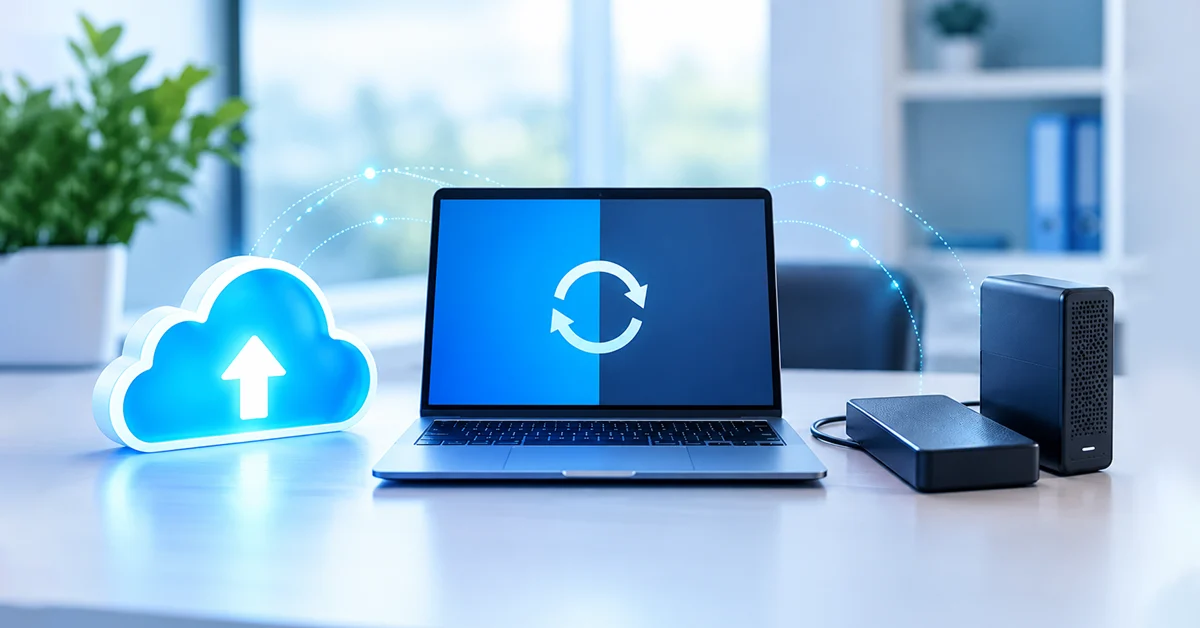
Security experts use the 3-2-1 rule. Keep three copies of your data. Store them on two different types of media. Keep one copy off site.
For a small business, that could look like this:
- Copy 1: your live files on your computers and servers.
- Copy 2: a local backup on a NAS or backup device at your office.
- Copy 3: an encrypted cloud backup in a secure data center.
This setup restores most files in minutes from the local copy. If you lose the office, the cloud copy still stands. That is why we see the hybrid approach as one of the best small business backup solutions for most offices.
Add protection against ransomware
Many experts now extend the rule to 3-2-1-1-0. Keep one copy offline or immutable, which means nobody can change or delete it. Also aim for zero errors by testing your restores regularly.
How to Choose the Best Small Business Backup Solutions for Your Office
Ask these questions before you buy:
- How much data do you have? Large databases or media files make cloud-only restores slow.
- How fast must you recover? Decide how many hours of downtime you can afford.
- How much data can you afford to lose? This sets how often backups should run.
- Do you have compliance needs? Look for encryption, retention controls, and audit reports.
- Who will manage it? A backup nobody watches is a backup that fails.
- What is your budget? Compare the total cost over three years, not just the first month.
Common Backup Mistakes to Avoid
Even good tools fail when the setup has gaps. Watch for these mistakes:
- Treating file sync as backup. Sync tools copy deletions and ransomware damage too.
- Never testing restores. A backup you have not tested is only a hope.
- Leaving out Microsoft 365. Microsoft keeps its service running, but you are responsible for your data. Email, OneDrive, and SharePoint need their own backup.
- Keeping the only backup in the same room. One fire or flood takes both copies.
- Skipping monitoring. Without alerts, failed jobs can go unnoticed for weeks.
- Forgetting laptops and remote staff. Work done outside the office needs coverage too.
Which Backup Setup Fits Your Business?
Use these starting points:
- Solo or home office: Use a reliable cloud backup plus one external drive. Keep the drive disconnected when you are not using it.
- Small office (5 to 25 people): Choose a hybrid setup with a local backup device and an encrypted cloud copy. Monitor it daily.
- Medical, legal, or financial firms: Choose a managed hybrid backup with encryption, longer retention, tested restores, and documentation for audits.
The right plan depends on your data, your budget, and how long you can afford to be down.
FAQ’s About Business Backup
Is cloud backup better than local backup?
Not by itself. Cloud backup protects you from site-wide disasters, while local backup restores faster. Most small businesses need both.
How often should a small business back up its data?
At least once a day. However, systems that change constantly, such as databases, may need hourly backups. Ask yourself how much work you can afford to redo.
Is cloud backup safe?
Reputable providers encrypt your data in transit and at rest. Still, you should protect your backup account with multi-factor authentication and a strong password.
How much do small business backup solutions cost?
Prices vary with your data size, number of devices, and how long you keep older versions. Instead of comparing monthly fees alone, compare the total cost over three years. A free IT review can help you get an accurate quote.
How often should I test my backups?
Test a restore at least once a quarter. Also test after any major change to your systems.
Your 5-Step Action Plan
You can start today. Follow these steps:
- List your critical data. Note where it lives, including laptops, servers, and Microsoft 365.
- Check your last backup. Confirm when it last ran and whether it finished without errors.
- Apply the 3-2-1 rule. Add a local or cloud copy wherever you have a gap.
- Secure and monitor. Turn on multi-factor authentication for backup accounts and set up failure alerts.
- Test your restores. Put a quarterly reminder on the calendar.
Conclusion
Local backup gives you speed. Cloud backup gives you safety. The best small business backup solutions use both, protect them from ransomware, and test them often.
If you are not sure your data is truly protected, we can help. Zia Networks serves small businesses in Santa Fe, Albuquerque, and across New Mexico. Call (505) 428-6544 or book a free IT review. We will check your current backups, find the gaps, and recommend a plan that fits your budget.