You email a quote to a new client and hear nothing back. A week later, you find out it was sitting in their spam folder the whole time. Or a customer phones to ask about an invoice you never sent. Both problems usually trace back to the same gap: no proper email authentication for business.
If you run a company in Albuquerque, Santa Fe, Las Cruces, or anywhere else in New Mexico, you likely don’t have someone on staff checking your DNS records. So the problem can sit unnoticed for months while deals stall and scammers borrow your name. At ZIA Networks, we see this in small business inboxes all the time, and it’s one of the easier things to fix once you know where to look.
Why Do My Business Emails Go to Spam?
Your business emails go to spam because receiving servers cannot verify that you actually sent them. Three DNS-based checks (SPF, DKIM, and DMARC) prove a message is genuine, and together they make up email authentication for business. When any of them is missing, misconfigured, or out of alignment, inbox providers like Gmail and Microsoft 365 treat your mail as suspicious and filter it or reject it.
The solution is an initial setup, followed by maintenance. Next, we’ll walk through how each piece works, how to set it up yourself, and how to troubleshoot it when something goes wrong.
What Are SPF, DKIM, and DMARC, and How Do They Work?
Email authentication for business is the process of proving, through DNS records, that a message really came from your domain and was not altered in transit. It relies on three standards: SPF lists who may send for you, DKIM signs each message, and DMARC tells receivers what to do when a check fails.
Imagine receiving a package. SPF would be the list of couriers that are permitted to deliver the package. DKIM would be the tamper-proof seal placed on the box. And DMARC is the written instruction telling the desk what to do with the package.
Standard | What it checks | Where it lives | Plain-English job |
SPF (Sender Policy Framework) | Is this server allowed to send for this domain? | TXT record in DNS | The approved-sender list |
DKIM (DomainKeys Identified Mail) | Was this message signed by the domain and left unchanged? | TXT or CNAME record holding a public key | The tamper-proof seal |
DMARC (Domain-based Message Authentication, Reporting and Conformance) | Do SPF and DKIM checks match the visible From field address? | TXT record at _dmarc.yourdomain | The policy and the reporting |
None of the three works well alone. SPF breaks when mail is forwarded. DKIM alone does not say what to do with failures. DMARC does nothing unless SPF or DKIM is in place first. Together they close the gaps.
Why Do Your Emails Land in Spam? The Real Causes
Spam placement is rarely about your wording. In our experience supporting small businesses, the cause is usually one of these four.
- No authentication at all. A brand-new domain, or one set up years ago and never touched, has no SPF, DKIM, or DMARC.
- Too many services sending as you. Your CRM, billing software, newsletter tool, and help desk each send mail using your domain, and only some are authorized.
- Broken or duplicate records. Two SPF records, a typo, or more than ten DNS lookups silently invalidate your SPF.
- Alignment failures. The domain that passes authentication differs from the domain in your visible From address, so DMARC fails.
There is also a rule change worth knowing. Since February 2024, Google and Yahoo have required bulk senders (those sending 5,000 or more messages a day to their users) to authenticate with SPF, DKIM, and DMARC and to keep spam complaint rates low.
Microsoft announced similar requirements for high-volume senders to Outlook.com. Even if you send far less than that, the big providers have raised the bar for everyone, and small senders without authentication look riskier by comparison.
Solid email authentication for business will not guarantee inbox placement, because content, sending reputation, and list quality still matter. But without it, nothing else you do will help.
Email Spoofing: How Criminals Send Emails as Your Business
Spam placement hurts your sales. Spoofing hurts your reputation and your bank account. Strong email authentication for business protects you from both.
When a domain has no DMARC policy, nothing stops a criminal from sending a message that appears to come from your CEO, your bookkeeper, or your company name. The FBI’s Internet Crime Complaint Center reported roughly $2.9 billion in business email compromise losses for 2023 alone, making it one of the costliest cybercrime categories it tracks.
Not even small companies are immune to attack. Cybercriminals target them due to vendor, customer, and employee trust, and because a small business probably doesn’t have any monitoring policies. A domain with an enforcement policy in place makes impersonation much more difficult.
SPF Record Setup: What Is It and How Do You Set It Up Correctly?
An SPF record is like your domain’s guest list. It’s one short line of text in your DNS that names every server and service allowed to send email as you. When a message arrives, the receiving server checks the sender’s IP address against your list. If the address is on it, SPF passes. If not, the message gets flagged, filtered, or rejected, depending on how you ended the record.
The easiest way to confirm your list is correct is to run an email spam testing deliverability check, which shows whether your SPF record passes before real customers are affected.
Here is what a typical record looks like for a company using Microsoft 365 and a newsletter tool:
Breaking that down:
- v=spf1 declares the record version.
- include: authorizes another provider’s sending servers.
- -all says reject everything not listed. A softer ~all marks unlisted senders as suspicious instead.
The Three SPF Mistakes We See Most
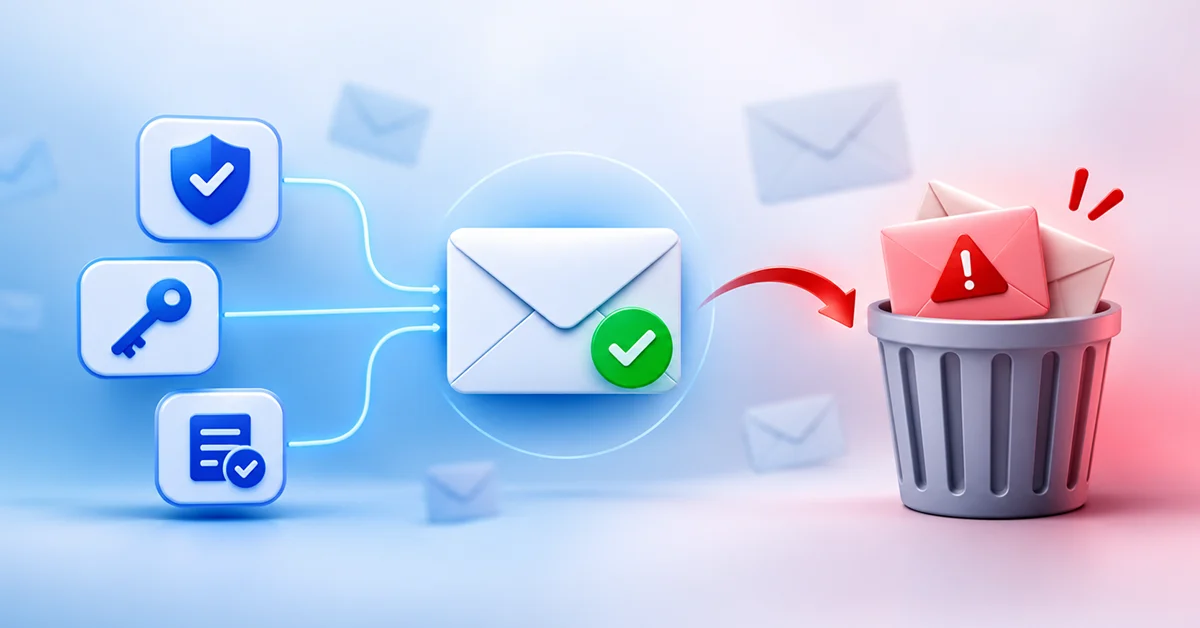
- Multiple SPF records. A domain may have only one. Two records cause a permanent error. Merge them into one line.
- Exceeding 10 DNS lookups. SPF allows a maximum of ten lookups, and every include counts, including nested ones. Go over and the whole record fails.
- Forgetting a sender. That one forgotten invoicing platform will land in spam every time.
Good SPF record configuration is an inventory exercise first and a DNS exercise second. List every tool that sends mail as you before you touch a record.
DKIM: The Digital Signature Behind Trusted Email
DKIM signs all outgoing emails with a digital signature.Your messaging system creates the signature using your private key. The public key is published by you in the DNS database. The recipient’s mail server uses the public key to verify that the message originated from you and has not been tampered with. That proof is a core part of email authentication for business.
Unlike SPF, DKIM survives forwarding, because the signature travels with the message. That makes it the more reliable of the two for DMARC.
DKIM Authentication in Gmail: How to Check It
To check DKIM authentication in Gmail, open the message you sent, click the three-dot menu, and choose Show original. At the top of the page you’ll see three rows: SPF, DKIM, and DMARC. You want PASS next to all three. For a second opinion, send a test message to a free email deliverability tester, which reports the same results and flags anything that looks off.
If DKIM shows NONE or FAIL, either the message was never signed or the public key in your DNS doesn’t match the one used to sign it.
What the Status Message Means
Many platforms show a status such as authenticating email with DKIM while they wait for DNS changes to be detected. That message is normal for a short time. DNS changes can take anywhere from a few minutes to 48 hours to propagate, though most appear within an hour or two.
If the status never clears after two days, the usual culprits are a typo in the selector name, a record added to the wrong domain, or a CNAME that your DNS host auto-appended with your domain name.
Use 2048-bit keys where your provider supports them. They are stronger than the older 1024-bit standard.
DMARC Explained: How to Stop Fake Emails From Using Your Domain
DMARC checks whether SPF or DKIM passed and whether the passing domain matches the address people see in the From line. It then applies the policy you chose and sends you reports about who is sending mail using your domain.
There are three policy levels:
Policy | Tag | What happens to failing mail | Best used |
Monitor | p=none | Delivered normally; you receive reports | First 2 to 4 weeks |
Quarantine | p=quarantine | Sent to spam | After fixing legitimate senders |
Reject | p=reject | Blocked entirely | Final goal |
A starter record looks like this:
The rua tag is where aggregate reports are sent. These XML files are hard to read raw, so most businesses use a DMARC reporting tool to turn them into a plain list of who is sending as you.
A common mistake is leaving DMARC at p=none forever. Monitoring is a starting point. It does not stop spoofing. Plan to move to quarantine and then reject once your reports show that all your legitimate mail passes.
How to Set Up SPF, DKIM, and DMARC Records: An 8-Step Walkthrough
This is how we go about setting up our new clients. You can achieve this on your own, provided that you have authority over your DNS records.
- Inventory every sender. List your email platform (Microsoft 365 or Google Workspace), marketing tool, CRM, billing system, website forms, and any printer or scanner that emails.
- Find your DNS host. This is usually your domain registrar or a service like Cloudflare. Log in and open the DNS management page.
- Publish one SPF record. Create one TXT record for all senders together. Start with ~all while testing, then move to -all.
- Turn on DKIM in each sending service. Each platform generates its own key. Copy the record it gives you into DNS exactly as shown.
- Give it time, then test. Email a Gmail address from your domain, open the message, choose Show original, and confirm that SPF and DKIM both say PASS.
- Publish DMARC at p=none. Add the TXT record at _dmarc. yourdomain and point reports to a mailbox you actually read.
- Review reports for 2 to 4 weeks. Fix every legitimate sender that fails.
- Tighten the policy. Move to quarantine, then reject, in stages.
The failure to follow step 1 results in more faulty configurations than any other error. Proceeding directly to rejection without completing steps 7 and 8 will prevent your invoices from being paid.
When implemented correctly, setting up SPF, DKIM, and DMARC is not scary. It’s simply a matter of crossing off a list.
HubSpot Email Deliverability Issues and Other Third-Party Senders
Marketing and sales channels make up the largest category of authentication failures. One of the common problems that arise when using HubSpot for sending emails involves the fact that if a company uses its domain to send campaigns but does not link this domain within the channel, then emails will be sent from the channel’s domain.
This is also true for Mailchimp, Salesforce, Zendesk, QuickBooks, and other similar applications. For each one:
- Connect your sending domain in the platform’s settings.
- Add the DKIM records it provides.
- Add its SPF include only if the vendor tells you to.
- Confirm alignment using a test message.
If your marketing emails land in spam while your regular Outlook messages do not, this is the first place to look.
Emails Going to Spam: How to Fix It Quickly
If your email is being filtered already, run through this list in order:
Get a free check-up of your domain on an authentication checker website to bring everything concerning SPF, DKIM, and DMARC into a single place.
- Double-check SPF records.Make sure that your DKIM is signing all your tools and not only your default mailbox.
- DMARC is aligned for all third parties. If you’re sending lots of emails to Gmail users, check your sending reputation via Google Postmaster Tools.
- Get rid of bad addresses from your mailing list. Keep complaints rate low. As per Google guidelines for bulk senders, the rate should be no more than 0.3 percent, and 0.1 percent is even better.
If your emails end up in spam, the solution will most likely be technical.
Why This Matters for New Mexico Businesses in Regulated Fields
If your organization deals with health information, financial information, government contracts, or any client information from a contracted source, then your email domain belongs to your security profile. More and more auditors, cyber insurance companies, and large clients will start asking if you have SPF, DKIM, and a DMARC policy.
The lack of a DMARC record becomes an easy finding on a security assessment form and an even easier correction. Email authentication must be considered the same as multi-factor authentication and backups when it comes to basic hygiene for your business.
FAQ’s
1. Do small businesses really need DMARC?
Ans: Yes, every business that sends email from its own domain needs DMARC. Scammers don’t care whether you send ten emails a week or ten thousand. Without DMARC, nothing tells inbox providers to reject fake messages using your name, so impersonators can reach your customers, vendors, and staff.
2. How much time will be required to setup SPF, DKIM, and DMARC?
Ans: The configuration process will be completed within less than one hour; however, the complete and secure deployment will require two to four weeks. This additional time period is required for the observation process during which the DMARC reports will show the forgotten applications that are sending emails on your behalf, such as a billing or CRM system.
3. Can I break my email by setting this up?
Ans: Yes, if you jump straight to a strict policy, because legitimate emails you forgot about can get blocked. The safe route is to start at p=none, which only monitors. Read the reports, fix any failing senders, then move to quarantine and finally reject in small steps.
6. Does authentication guarantee my emails reach the inbox?
Ans: No. Delivery needs authentication, but that does not mean inbox delivery is ensured by authentication. Consider it akin to proving one’s identity. Gmail and Outlook will still assess the reputation of the sender, any complaints about the sender, the quality of the mailing list, and recipient reaction to the sender’s emails.
7. How often should I review my SPF, DKIM, and DMARC records?
Ans: Check them each time you install or uninstall a tool that is sending emails, and at least two times per year. It is likely that newly installed tools are going to be sending emails from your domain without your knowledge, and a simple two checks will protect your reputation.
What to Do Next: Your Email Authentication Checklist
At this point, you understand SPF, DKIM, and DMARC and how important they are. The next step is simple: take a look at where you stand now with your domain, and make the necessary corrections based on your findings. Here’s a quick summary and a five-minute test to try out.
Here’s everything in a nutshell:
- SPF is your list of approved senders.
- DKIM stands for DomainKeys Identified Mail, which is basically a digital signature.
- DMARC tells inbox providers what to do with fake mail and sends you reports about who’s using your domain.
- Most spam problems come from setup mistakes, not bad luck. The good news is that they’re fixable.
- Solid email authentication for business takes just a few hours to set up, and it protects both your inbox placement and your reputation.
Try This 5-Minute Check Today
- Start by opening an email that you have sent from your business email address to a Gmail account.
- Select the three-dot icon and click on Show original.
- Scroll up the page and check for SPF, DKIM, and DMARC.
- Test out your domain name using a free online tool to see all three records.
How to Read Your Results:
What you see | What it means | What to do |
PASS on all three | Your setup is working | Keep reviewing it twice a year |
FAIL on any check | A record is broken or a sender is missing | Fix that record first |
NONE or no record found | The record doesn’t exist yet | Create it |
DMARC set to p=none | You’re monitoring but not blocking fakes | Plan to move to quarantine, then reject |
If you spot a FAIL, a missing record, or a DMARC policy sitting at none, you’ve found a real problem, and you’ve also found a quick win.
Get Your Email Secured by ZIA Networks
Setting up email authentication for business doesn’t have to eat into your week. ZIA Networks will audit your SPF, DKIM, and DMARC records, fix anything broken, and move you to a policy that blocks spoofing, all without interrupting your daily email.
Ready to get your emails out of spam? Book your free email security review with ZIA Networks today, and we’ll show you exactly what’s wrong and how to fix it.