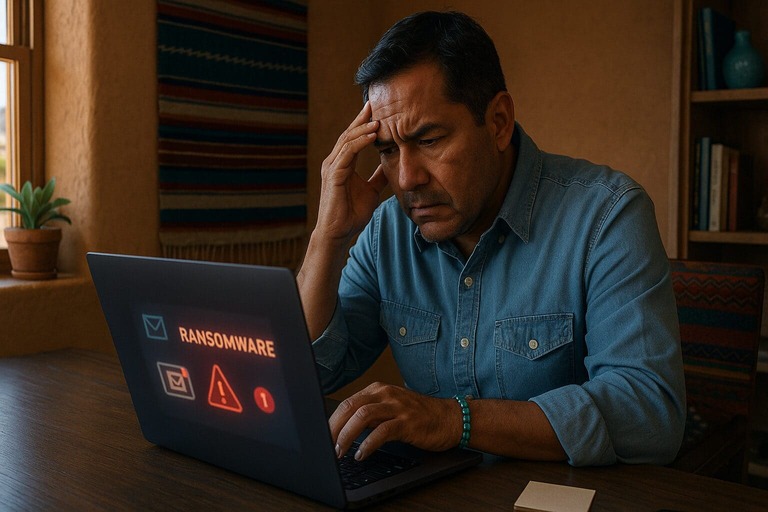
Worried your computer has been hacked? You are not alone. Small and midsize businesses face cyberattacks, too. In fact, SMBs are targeted nearly four times more than large organizations. A possible hack can feel scary and stressful, especially when things seem out of your control. However, you can take steps to protect yourself without being a tech expert.
Act quickly to limit the damage. The sooner you respond, the more you can protect your bank accounts, files, and contacts. Meanwhile, waiting gives attackers more time to steal information, spread malware, or lock you out of your accounts.
By the end of this article, you will know how to spot the warning signs, gather useful evidence, and contact your IT team or Zia Networks for safe recovery.
How to Know If My Computer Has Been Hacked
If you suspect your computer has been hacked, start with this checklist. Two or more warning signs should raise serious concerns. In that case, move on to collecting evidence and contacting your IT support team.
Common Warning Signs of a Hacked Computer
- Strange pop-ups: You may see fake antivirus alerts, support phone numbers, or messages demanding payment to unlock your files.
- Slow performance or loud fans: Your computer may feel hot, noisy, or unusually slow. Hidden programs, such as crypto-mining software, can cause these symptoms.
- Unknown apps or browser changes: Look for new icons, unfamiliar toolbars, unexpected homepage changes, or redirects to suspicious websites.
- Locked-out accounts: Your passwords may stop working, or you may receive password-reset notifications you did not request. An attacker may also change your recovery phone number.
- Messages you did not send: Friends or clients may report strange messages from your account. You might also see login alerts from unfamiliar locations.
- Disabled security tools: Your antivirus may refuse to open or update, or it may show that protection is off.
- Changed or missing files: Check for missing documents, unfamiliar file extensions, or ransom notes demanding payment.
- Unapproved charges or device prompts: Watch for unfamiliar bank transactions, purchases you did not make, or unexpected multi-factor authentication prompts.
Unusual Signs of a Hacked Work Computer
Work devices may show additional signs of compromise. Pay particular attention to these issues:
- Unexpected MFA prompts: You receive sign-in approval requests even though you are not trying to log in.
- VPN or security agent problems: Your VPN disconnects unexpectedly, an unfamiliar VPN appears, or endpoint protection reports that it is inactive or that tamper protection is off.
- Unusual shared-drive activity: Files get renamed or deleted at strange hours, or an unknown user makes changes across many files.
- Backup failures: Backup jobs start reporting errors, or storage fills up without an obvious reason.
- New administrator accounts: A local or domain administrator account appears even though nobody on your team created it.
- Strange printer or calendar activity: Your printer produces unexpected jobs, or your account sends meeting invitations you did not create.
What to Do Immediately If Your Computer Is Hacked
Take these steps as soon as you notice suspicious activity:
- Stop using the affected computer.
- Disconnect it from the internet, but do not power it off. Shutting it down may interfere with forensic evidence collection.
- Take photos or screenshots of suspicious messages and behavior.
- Notify your manager or IT contact immediately. If you do not have an IT contact, Zia Networks can help you determine the next steps.
Next, focus on confirming the incident and collecting evidence safely.
Confirm the Breach: What to Do If You Suspect a Hack
If something seems wrong, check the available evidence before you panic. Nearly half of small businesses have been attacked, so it makes sense to take your concerns seriously. However, do not delete files, run scans, or reset the device before speaking with your IT team.
Step 1: Check Antivirus and Security Alerts
- Open your built-in security tool, such as Windows Security, or your company antivirus.
- Review the Protection history or Quarantine section. Record any recent detections or blocked items.
- If your antivirus is off and you did not disable it, treat this as a serious warning sign.
Step 2: Review Multi-Factor Authentication Activity
Check recent multi-factor authentication (MFA) prompts. If you see approval requests you did not initiate, someone may be trying to access your account.
Step 3: Check Sent Messages and Account Settings
- Review your inbox for password-reset notifications you did not request.
- If you cannot access an important account, assume someone may have compromised it.
- Check for unfamiliar email folders or Outlook rules that you do not remember creating.
Step 4: Contact Your IT Provider
If these checks suggest a breach, contact your IT provider or Zia Networks. Their team can use professional tools to investigate the incident and collect forensic evidence without making the situation worse.
Bring any information you have, including:
- Screenshots of pop-ups or security alerts
- Dates and times when you noticed unusual activity
- Unknown logins, MFA prompts, or email-forwarding rules
- Files that disappeared or changed names
- Ransom notes or unfamiliar applications
While you wait for instructions, keep the affected device offline. Avoid clicking around, installing new tools, or wiping the computer. Instead, let your IT team isolate the device, collect evidence, and decide whether to clean, reset, or rebuild it.
Who to Call When Your Computer Is Hacked
Contact your IT support team or managed service provider (MSP), such as Zia Networks, right away if you notice any of these warning signs:
- A ransom note appears, or files have unfamiliar extensions.
- You lose access to important accounts or notice unknown logins.
- Money moves from a bank account, payroll system, or payment app without authorization.
- Security tools remain disabled even after you try to open them.
- New administrator accounts, unfamiliar forwarding rules, or widespread file changes appear.
- Clients report strange messages or invoices from your account.
What to Prepare Before Calling IT Support
Keep the details simple and clear. Share the following information:
- What happened and when you first noticed it. Screenshots can help.
- Which devices and accounts seem affected.
- Any pop-ups, error messages, or ransom notes.
- Recent changes, such as new software or browser plugins.
- Other people who might be affected, including staff, clients, and vendors.
Tell Clients or Vendors if Their Data May Be Affected
Communicate early and clearly if the incident could affect other people. Explain that you are investigating a security issue, describe the steps you are taking, and let them know Zia Networks is helping. Stick to confirmed facts, provide a brief timeline, and promise updates as you learn more.
Also, explain what recipients should do next. Ask them to change passwords for shared systems and watch for unusual messages or invoices. If anyone requests a change to payment details, tell them to verify it by calling a number they already know. Name one person as the main contact and provide that person’s phone number to keep communication organized.
Avoid guessing about the cause, sharing technical details that could help an attacker, or assigning blame. Instead, focus on practical steps that reduce risk and protect everyone’s data.
Prioritize people who have access to shared drives or portals, clients who recently received invoices from you, and vendors with integrations or remote access to your systems. These groups may face the greatest immediate risk, so contact them first.
Finally, save copies of all communications and record who received them, along with the dates and times. If regulated data may be involved, check the applicable legal and contractual notification requirements. When in doubt, ask Zia Networks to coordinate notifications and provide clear updates.
Can a Hacked Computer Be Fixed?
In many cases, yes. However, recovery depends on the severity of the attack and the security measures you had in place before the incident.
When repair is realistic
If the problem involves ad pop-ups, a malicious browser add-on, or one unwanted application, careful cleanup and a full security scan may resolve it. You can also secure accounts with suspicious logins by changing their passwords and enabling multi-factor authentication.
When recovery is limited
Deep malware, unauthorized administrator accounts, or ransomware can make recovery more difficult. In some ransomware cases, you may not be able to recover encrypted files. Therefore, a complete wipe and clean reinstall may offer the safest route to a healthy computer.
Why backups matter
Your backup plan plays a major role in recovery. With reliable backups, you can restore clean copies of your files and resume work sooner. Without them, recovery may be partial, and some files may be permanently lost.
What a strong backup plan includes
- Automatic backups that run daily
- Copies stored away from the computer, such as in a trusted cloud backup service
- Version history that lets you restore files from a clean point in time
What to do next
Your IT support provider or an MSP like Zia Networks can assess the damage, recover what is possible, rebuild the device safely, and create a backup plan that fits your budget.
What an MSP Like Zia Networks Can Do That DIY Tools Cannot
Professional IT support can help you investigate the incident beyond the affected computer. For example, an MSP can:
- Contain the threat across your network: Isolate the device, check other computers, and prevent the attacker from moving to other systems.
- Investigate the incident: Review logs, messages, and sign-in history to identify how the attacker gained access and close the security gap.
- Secure accounts and identities: Revoke risky sessions, remove hidden forwarding rules, reset MFA correctly, and remove unauthorized apps with access to your email or files.
- Rebuild and restore devices safely: Reimage computers, verify backups, and restore only clean data.
- Patch and strengthen security: Apply updates, secure the router, improve default settings, and deploy endpoint protection and monitoring.
- Coordinate communication: Help you notify clients or vendors and meet relevant policy or contract requirements.
If you are unsure what to do, choose the safer path. Avoid using the affected computer until your IT team advises you. Contact Zia Networks for help confirming the fix, securing your accounts, and setting up protections to reduce the risk of another incident.
Preventing the Next Attack: Easy Protection Tips
Use Strong Passwords and Two-Factor Authentication
Create long, unique passwords for every account. A password manager can make this process easier.
Also, enable two-factor authentication wherever possible. That way, a stolen password alone will not be enough to access your accounts. However, many small businesses still skip this step. A 2024 Cyber Readiness Institute survey found that 65% of SMBs do not use MFA, while 58% are unaware of its benefits. Do not leave your business exposed in the same way. An authenticator app is a good option.
Keep software and devices updated
Software updates fix security weaknesses that attackers can exploit. Turn on automatic updates for your operating system, browsers, apps, and work tools. In addition, restart computers regularly so updates can finish installing.
Limit admin access and shared accounts
Use a normal user account for daily work. Only sign in as an admin when you must install or change something. Avoid shared logins. Give each person their own account and remove access when someone leaves.
Use a professional-grade antivirus and firewall
Pick security tools that run in real time and are managed from a central dashboard. Keep them on and up to date. Make sure the firewall is enabled, blocks risky traffic, and uses safe browsing or web filtering if available.
Partner with an IT provider like Zia Networks for ongoing monitoring
Threats change fast. Zia Networks can watch your systems, apply patches, respond to alerts, and spot problems early. The team can also review settings, check backups, and fine-tune protections so your team stays safe with less effort.
How Zia Networks Can Help
Zia Networks specializes in IT security solutions for small and midsize businesses. Their services include immediate response to suspected hacks, remote diagnostics, secure password resets, data backup solutions, and long-term protection through monitoring, antivirus, and firewalls.
Immediate response to suspected hacks
When something looks wrong, the team acts right away. Zia Networks helps you disconnect safely, stop the attacker from getting in again, and protect other devices on your network. You get clear, simple steps and a calm voice to guide you.
Remote diagnostics and system cleanup
Zia Networks connects securely to check what happened, find the entry point, and remove the threat. The team looks deeper than basic antivirus to catch hidden malware, bad browser add-ons, and risky startup items. If needed, Zia Networks helps you reset or rebuild the computer the safe way.
Secure password resets and account recovery
Your accounts are the keys to your business. Zia Networks walks you through changing passwords on a clean device, turning on multi factor authentication, and removing any hidden forwarding rules or unknown app access. If you are locked out, the team helps you recover access without losing data.
Data backup solutions to prevent loss
Zia Networks sets up reliable backups for your files and cloud data so you can recover quickly after an incident. If you already have backups, the team tests them and restores only clean copies. If you do not, Zia Networks builds a simple plan that runs on schedule and alerts you if something fails.
Long-term protection with monitoring, antivirus, and firewalls
Zia Networks keeps your systems patched, your antivirus up to date, and your firewall configured to block risky traffic. Monitoring watches for early warning signs like unusual logins or disabled protection can help fix issues before they turn into outages.
Support plans tailored to small business needs and budgets
Every business is different. Zia Networks offers clear support options that fit your size, tools, and budget. Choose basic coverage for updates and antivirus, a stronger plan with monitoring and response, or full service with compliance help and user training. The pricing is simple and the language plain so you know exactly what you are getting.
See also: SMB takeaways from the recent SharePoint on-premise hack
You’re Not Alone! Help Is One Call Away
Finding out your computer was hacked is upsetting, but you can recover. Most issues can be fixed with steady steps and a little help.
If you want support, Zia Networks is here. The team can jump in right away, check what happened, clean up your system, and set up simple protections so it is less likely to happen again. Reach out to schedule your free business technology review today.